Overview
This screen allow user to send mail or download mail to application.
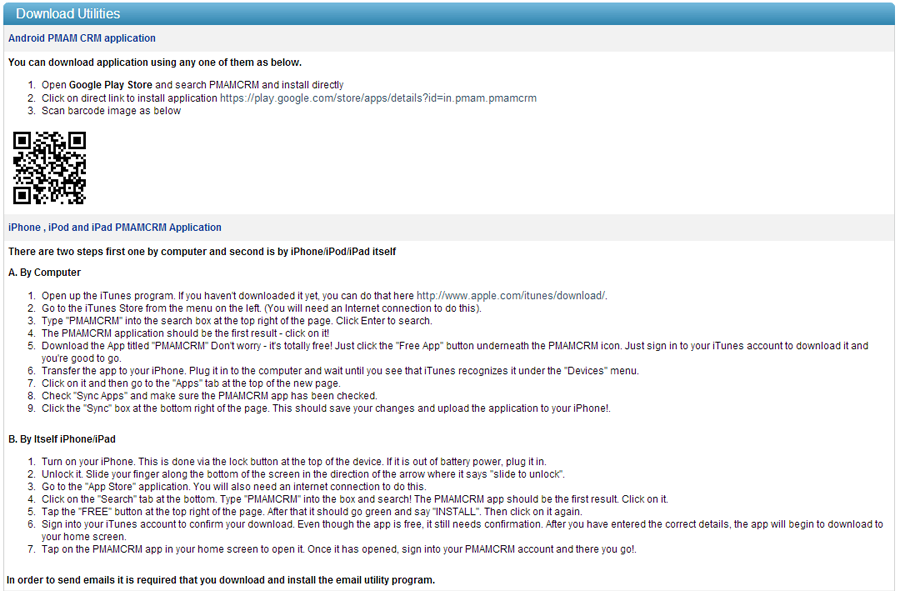
Download Utilities screen allows user to download (1) Android PMAM CRM application, (2) iPhone , iPod and iPad PMAMCRM Application, (3) Email Client, (4) GPS Application, and (5) Free SMTP Provider.
Android PMAM CRM application:
1. Open Google Play Store and search PMAMCRM and install directly
2. Click on direct link https://play.google.com/store/apps/details?id=in.pmam.pmamcrm to install application
3. Scan barcode image as below
iPhone, iPod and iPad PMAMCRM Application:
iPhone , iPod and iPad PMAMCRM Application:
There are two steps for downloading and installing iPhone, iPod and iPad PMAMCRM Application.
A. By Computer:
1. Open up the iTunes program. If you haven't downloaded it yet, you can do that here http://www.apple.com/itunes/download/.
2. Go to the iTunes Store from the menu on the left. (You will need an Internet connection to do this).
3. Type "PMAMCRM" into the search box at the top right of the page. Click Enter to search.
4. The PMAMCRM application should be the first result - click on it!
5. Download the App titled "PMAMCRM" Don't worry - it's totally free! Just click the "Free App" button underneath the PMAMCRM icon. Just sign in to your iTunes account to download it and you're good to go.
6. Transfer the app to your iPhone. Plug it in to the computer and wait until you see that iTunes recognizes it under the "Devices" menu.
7. Click on it and then go to the "Apps" tab at the top of the new page.
8. Check "Sync Apps" and make sure the PMAMCRM app has been checked.
9. Click the "Sync" box at the bottom right of the page. This should save your changes and upload the application to your iPhone!.
B. By iPhone/iPad itself:
1. Turn on your iPhone. This is done via the lock button at the top of the device. If it is out of battery power, plug it in.
2. Unlock it. Slide your finger along the bottom of the screen in the direction of the arrow where it says "slide to unlock".
3. Go to the "App Store" application. You will also need an internet connection to do this.
4. Click on the "Search" tab at the bottom. Type "PMAMCRM" into the box and search! The PMAMCRM app should be the first result. Click on it.
5. Tap the "FREE" button at the top right of the page. After that it should go green and say "INSTALL". Then click on it again.
6. Sign into your iTunes account to confirm your download. Even though the app is free, it still needs confirmation. After you have entered the correct details, the app will begin to download to your home screen.
7. Tap on the PMAMCRM app in your home screen to open it. Once it has opened, sign into your PMAMCRM account and there you go!.
Email Client:
1. Click PMAMCRM Email set up 1.0 to download and install the email application.
2. Click Run and follow the steps in the installer to install the PMAMCRM Email Application.
3. Click Start, select All Programs, PMAM-CRM and then click PMAM-CRM Send Email to display the Send Email Configuration application.
4. From the System menu, click Mail Configuration to configure PMAMCRM application with the required email server.
5. Click the Save Configuration button to save the email configuration.
| Note: From the System menu, click Send Mail Now to send emails via the configured server. |
GPS Application:
1. Click on PMAM CRM GPS Application (Zip File)
2. Extract the Zip file
3. Copy the ".jar" and ".jad" files to the device
4. Install the ".jar" file
Related Links
 My
Active Leads Page
My
Active Leads Page
Copyright 2000-2009 pmamcrm.com Web-based Customer Relationship Management (CRM)